How-To: Assign Token to Workload
This guide shows how to give an existing User Access Token access to a model: from the model itself, from the Tokens page, or with the Python SDK. To create a new token for a model instead, see Create User Access Token.
Before you start
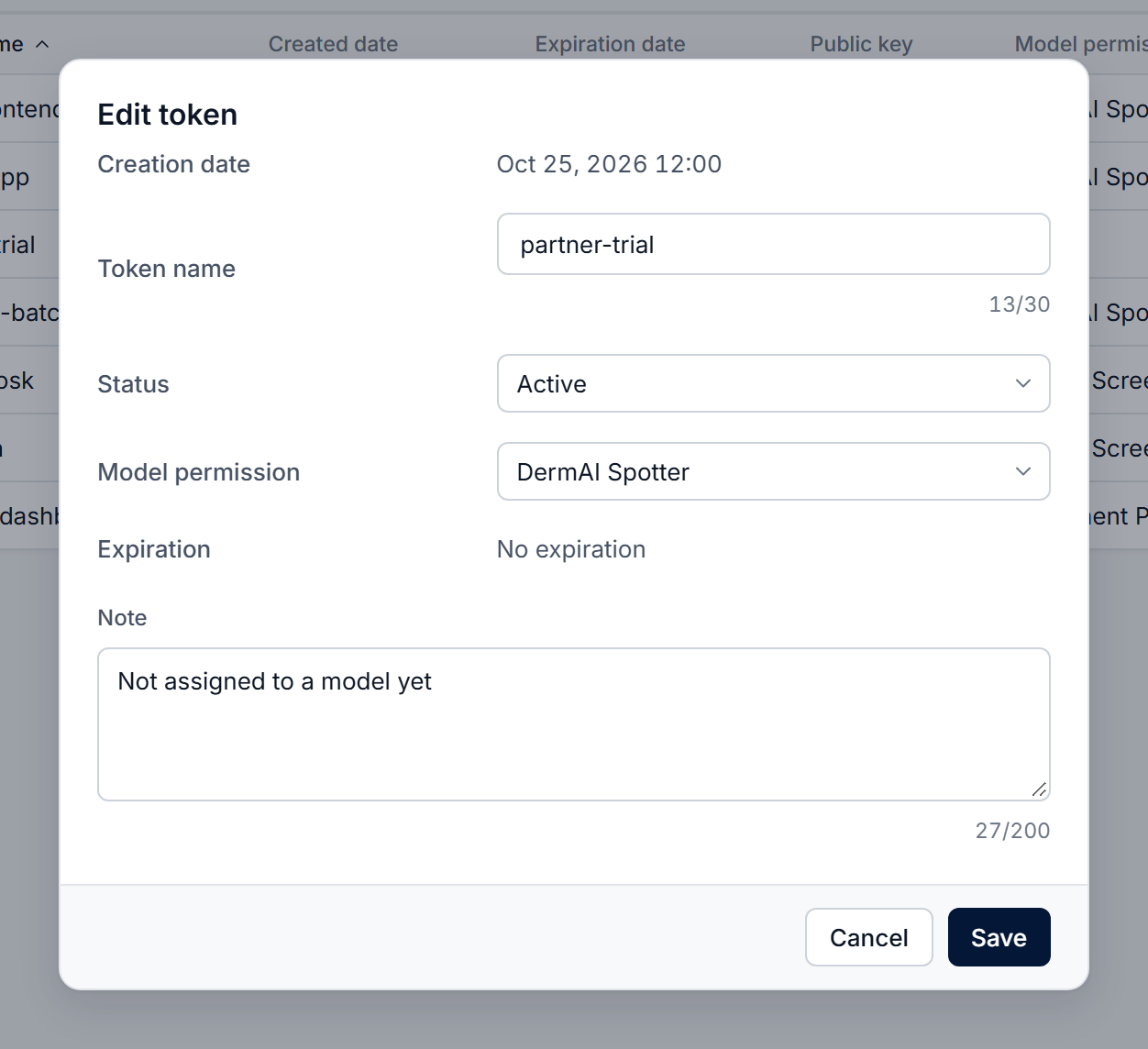
From the model, the Add token list shows unassigned tokens; selecting one assigns it to that model. From the Tokens page, Edit token lets you choose the needed model directly, or move an assigned token straight to another model.
A token's model can't be changed or removed while a worker is running on its current model. Stop the worker first.
A token moved to a different model needs a new evaluation key before it can be used for queries.
Evaluation keys are tied to a token and its model. After you assign a token to a different model, generate and upload a new key for it. See Upload Evaluation Key.
Assign a token
- Console: from the model
- Console: from the Tokens page
- Python SDK
Use this to connect an unassigned token to a model you're looking at. In the Console, select Models in the left menu.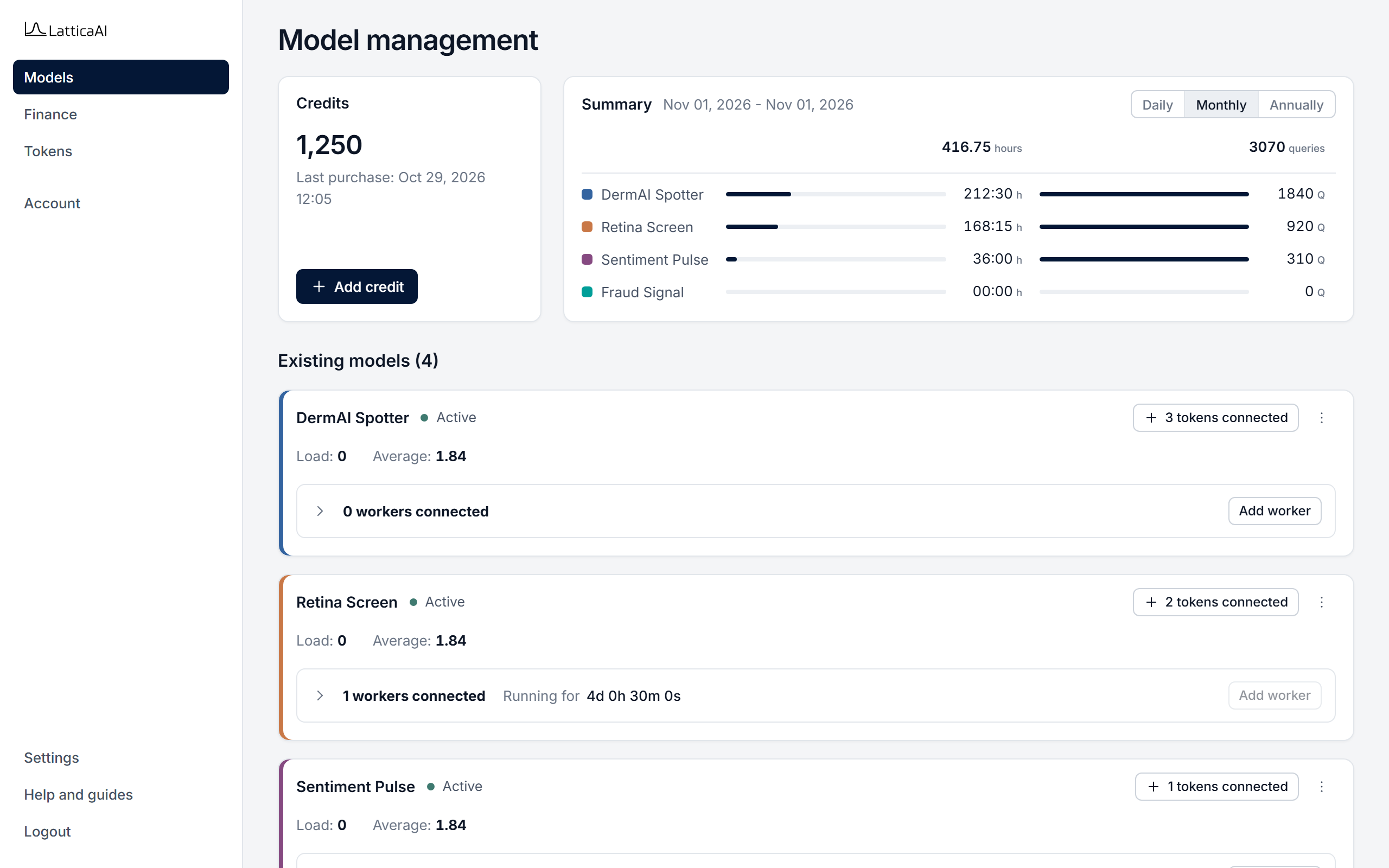
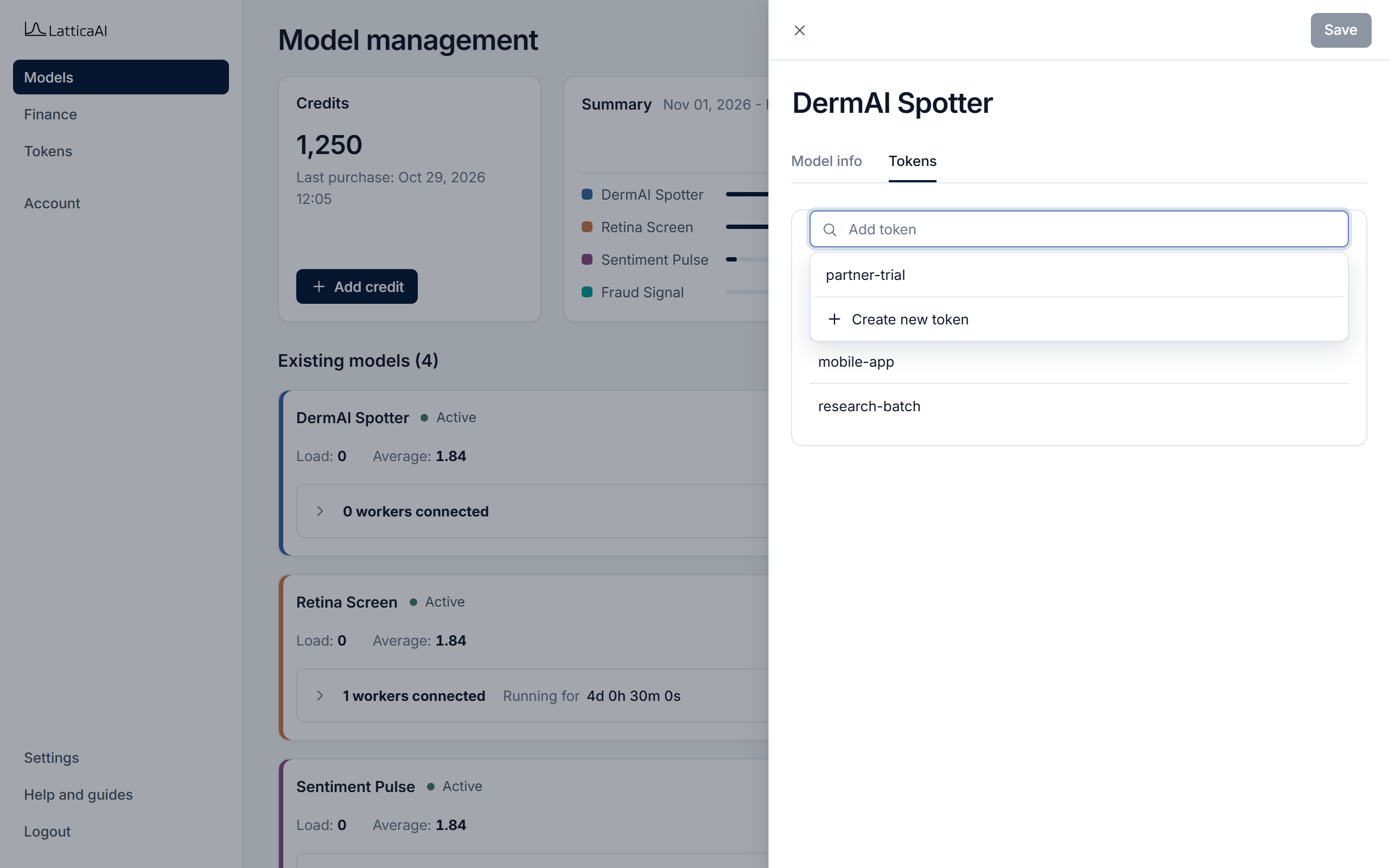
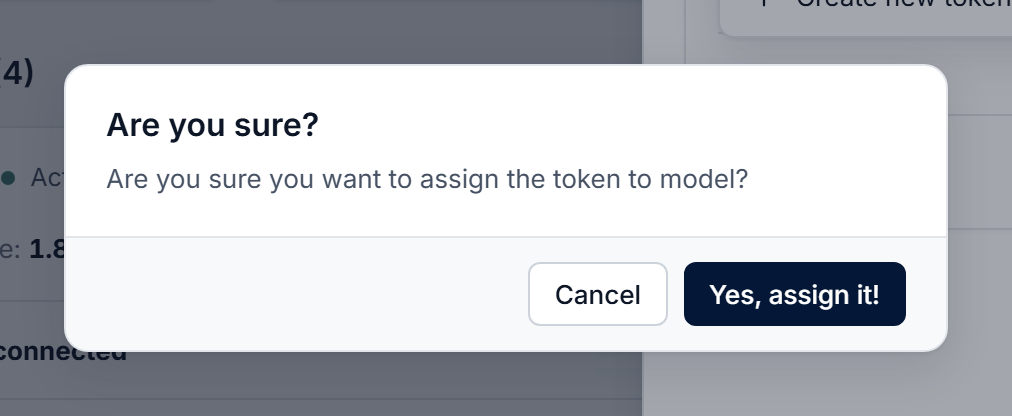
Use this to assign any token, or to move an assigned token straight to another model. In the Console, select Tokens in the left menu and find the token.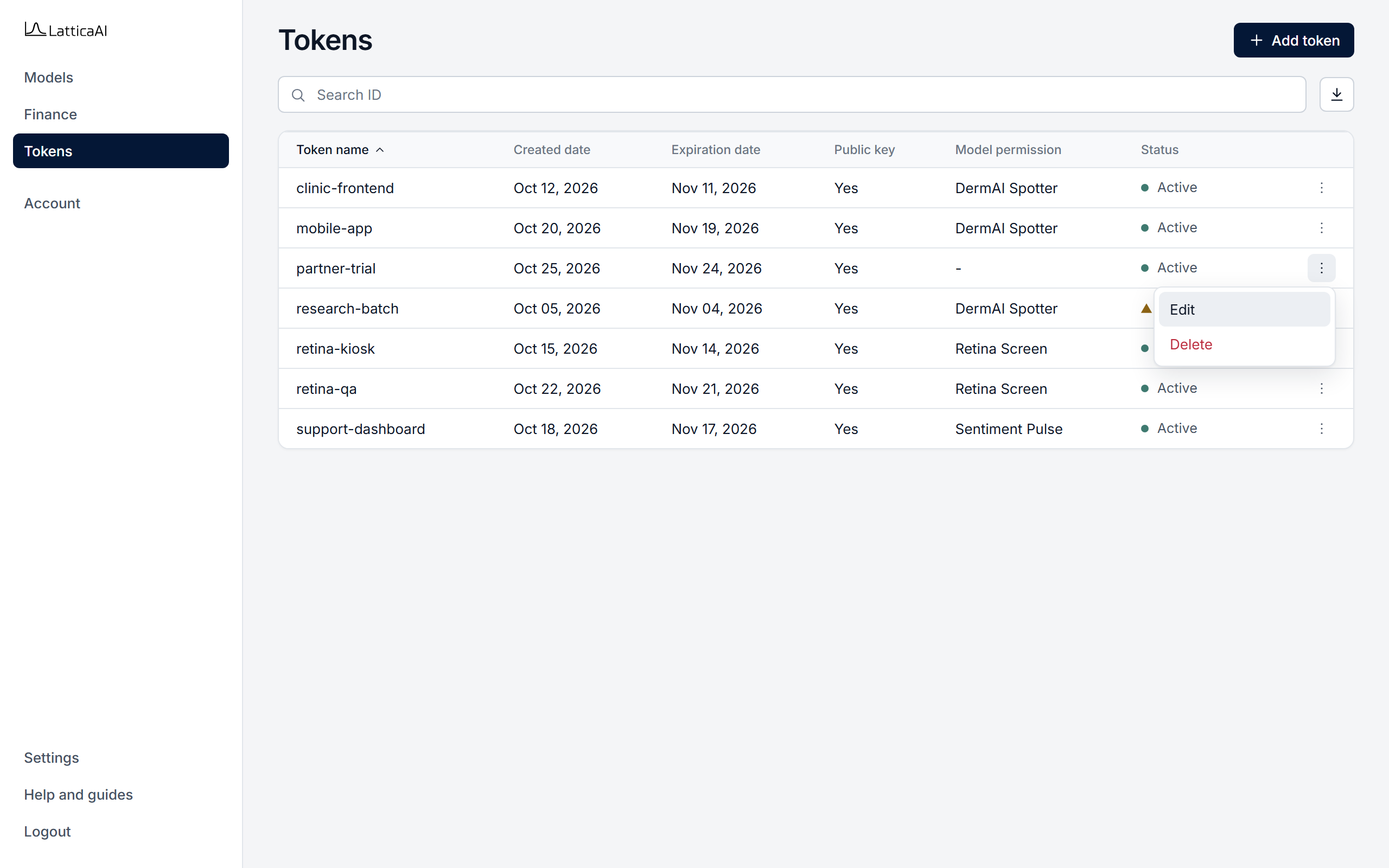
Assign a token with studio.tokens.assign. It returns the server's message, plus a warning when there is one, for example when the token isn't Active.
import os

from lattica_studio import LatticaStudio

studio = LatticaStudio(os.environ["LATTICA_LICENSE_KEY"])

model = studio.models.get_by_name("DermAI Spotter")
token = next(t for t in studio.tokens.list() if t.name == "partner-trial")

# To move a token that is assigned elsewhere, remove that assignment first:
# if token.model_id:
#     studio.tokens.unassign(token.id, token.model_id)

result = studio.tokens.assign(token.id, model.id)
print(result["message"])
if result.get("warning"):
    print("Warning:", result["warning"])
After assigning, the token holder generates and uploads an evaluation key for the model before querying. See Upload Evaluation Key.