How-To: Modify User Access Token Setting
This guide shows how to change a User Access Token after it is created: rename it, change its status, model or note, or delete it. You can do this in the Lattica Console or with the Python SDK.
Before you start
Set its Status to Suspended to pause it, or Canceled to cancel it. Either way, it can't be used for queries.
A token moved to another model needs a new evaluation key. See Assign Token to Workload.
What you can change
| Setting | Rules |
|---|---|
| Token name | Up to 30 characters, unique in your account. |
| Status | Active, Suspended or Canceled. Only an Active token can be used for queries. |
| Model permission | Choose another model or clear it to leave the token unassigned. Not possible while a worker is running on the token's current model. |
| Note | Up to 200 characters, for your team. |
Change a token
- Console
- Python SDK
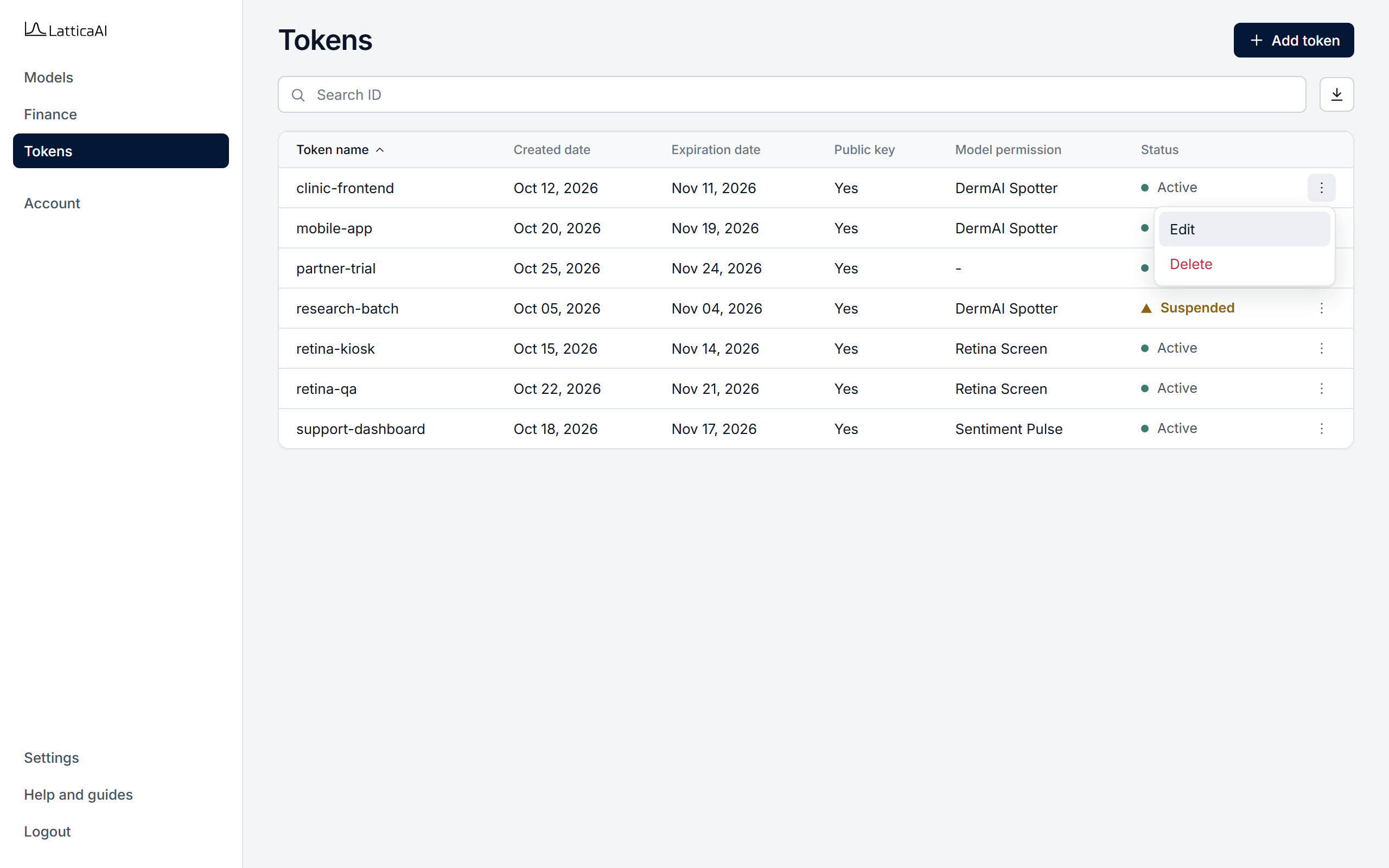
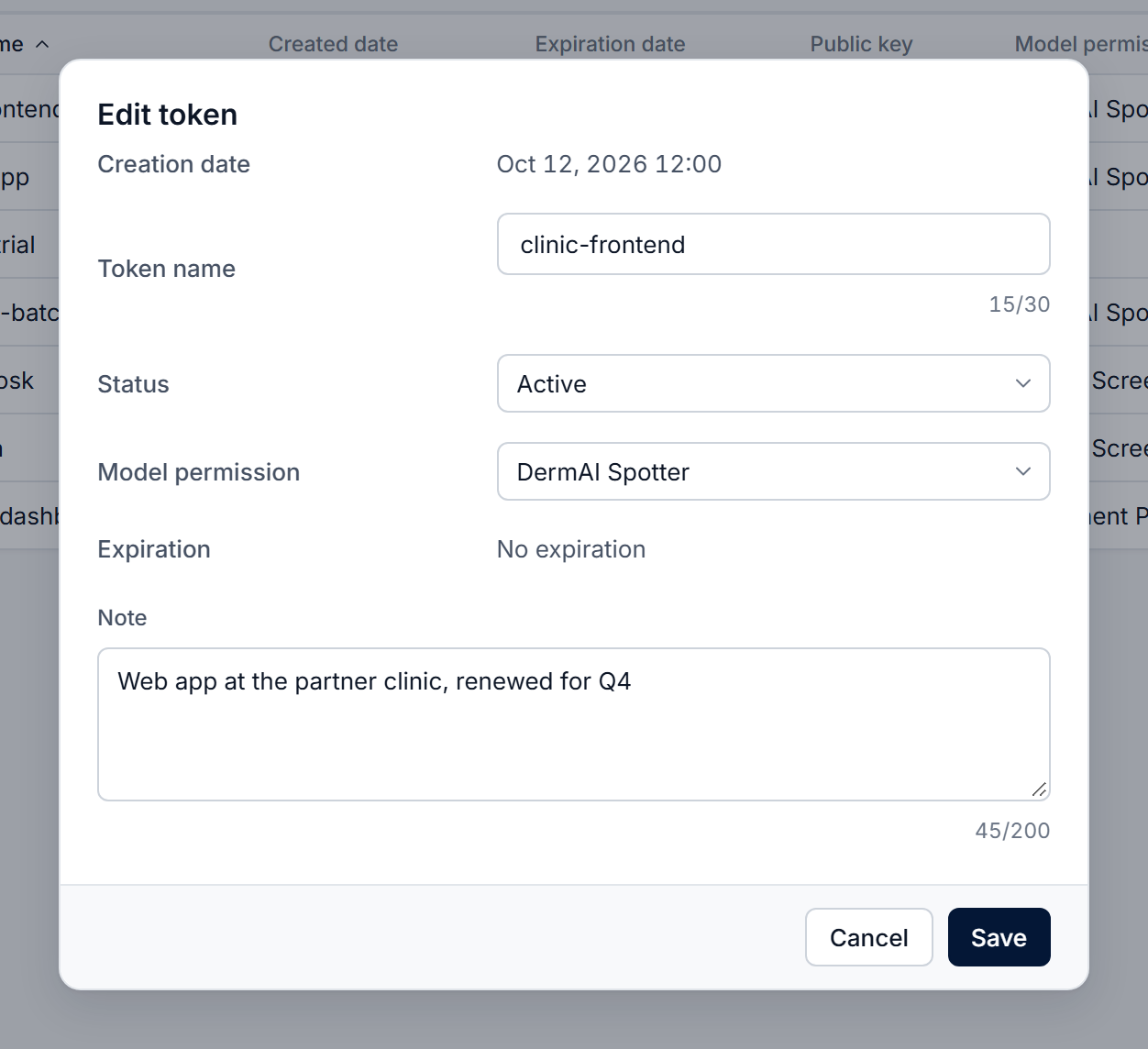
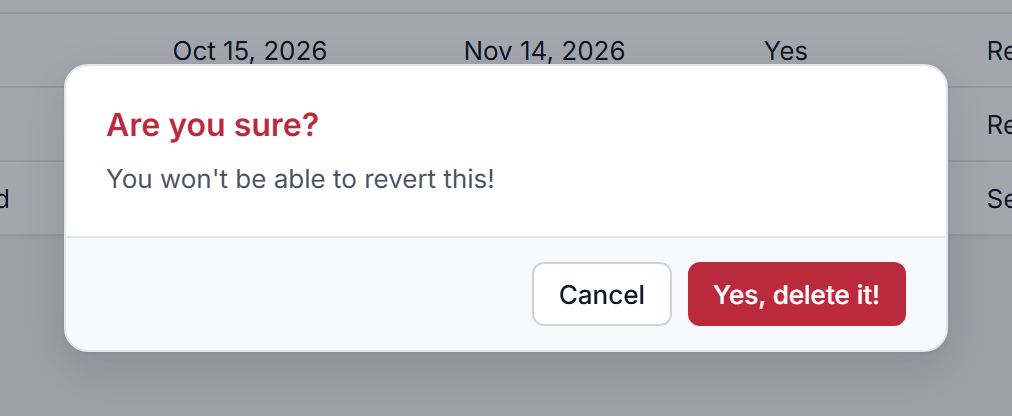
In the Console, select Tokens in the left menu and find the token. The search box filters by token name.
A deleted token can't be restored. To stop a token for now and use it again later, set its status to Suspended instead.
Change a token's name, note or status with studio.tokens.update. Only the fields you pass change. Delete a token with studio.tokens.delete.
import os

from lattica_studio import LatticaStudio

studio = LatticaStudio(os.environ["LATTICA_LICENSE_KEY"])

# Find the token by name.
token = next(t for t in studio.tokens.list() if t.name == "clinic-frontend")

# Rename it and update the note.
studio.tokens.update(token.id, name="clinic-frontend-v2", note="Renewed for Q4")

# Pause it: a suspended token can't be used for queries.
studio.tokens.update(token.id, status="SUSPENDED")

# Or delete it for good.
# studio.tokens.delete(token.id)
studio.tokens.update doesn't change a token's model. Use studio.tokens.unassign and studio.tokens.assign, as shown in Assign Token to Workload and Remove Token's Assignment.