How-To: View Payment Transaction History
This guide shows where to see every payment you've made and the credits it bought, how to export the list or create an invoice, and how to list payments with the Python SDK.
Before you start
All on the Finance page
The Finance page shows your balance, a chart of credits bought over time, and the Payout activity table.
One row per payment
Each row is a payment: what you paid, the credits you got and the package you bought. A sign-up bonus appears as a row too.
Invoices on request
You can create an invoice for any paid row. A sign-up bonus has no invoice.
The Payout activity table
| Column | What it means |
|---|---|
| No. | The row's position in the list. |
| Payout ID | The payment's transaction ID. Quote it when you contact support. |
| Charge date | When the payment was made. |
| Billing amount | What you paid, in US dollars. |
| Credit amount | The credits the payment added to your balance. |
| Package name | The credit package you bought. |
See your payments
- Console
- Python SDK
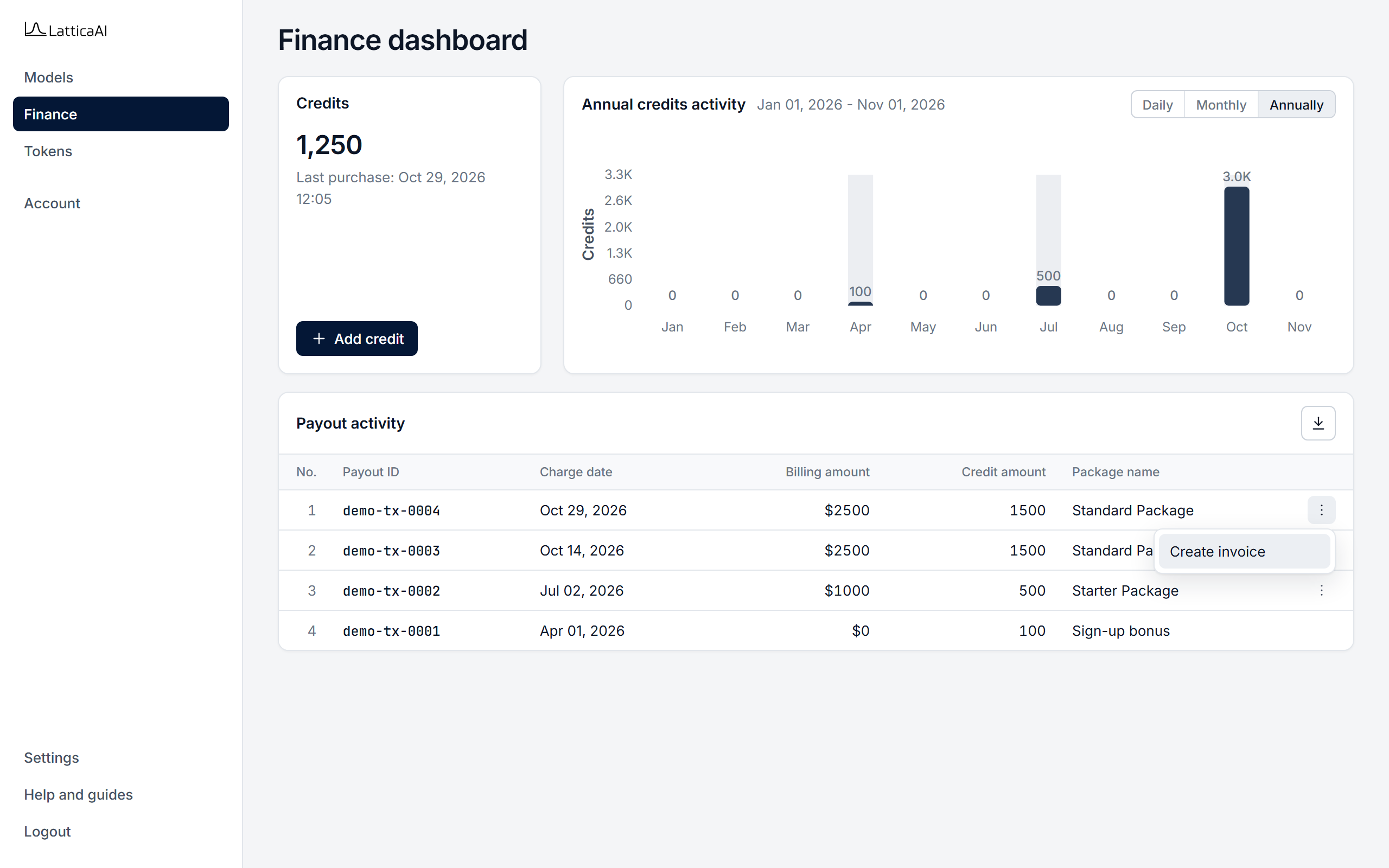
Step 1 of 5:
Open Finance
In the Console, select Finance in the left menu. The Finance dashboard opens.
List your payments with studio.finance.list_transactions. Each payment is a dictionary with the same details as the Console table.
list_payments.py
import os

from lattica_studio import LatticaStudio

studio = LatticaStudio(os.environ["LATTICA_LICENSE_KEY"])

for payment in studio.finance.list_transactions():
    print(
        payment["transactionDate"],
        payment["packageName"],
        f"${payment['amountPaid']}",
        f"{payment['creditsPurchased']} credits",
    )